
Fixing crackling, popping, clicking, static, or scratchy MP3 audio in Finale 3D

-
AuthorPosts
-
 DrewFinale
Joined: Dec 2019 Posts: 803 Location: United States  Charcoal
UPDATE: This issue has been fixed in the latest version of Finale 3D.
Finale 3D’s MP3 audio support has been overhauled to fix pops, glitches, crackling, clicking, static, and other audio artifacts that could occur with some MP3 files. If you experience these problems, update to the latest version of Finale 3D and use your MP3 file normally. It is no longer necessary to convert the MP3 to WAV and back to MP3 using Audacity.
The update also adds MP3 soundtrack export directly from File > Export > Export soundtrack, including a 320 kbps constant bitrate preset for the COBRA Audio Box.
Important information for existing shows
Finale 3D now starts MP3 songs at their true first sample. Earlier versions started MP3 music slightly late.
When you open a show created with an earlier version that contains an affected MP3, you may see an Update Music Timing message. Click Update show. Finale 3D will adjust the song timing so the music remains aligned with the effects as you originally designed them.
Before producing your show, export the soundtrack from Finale 3D using File > Export > Export soundtrack and use the exported soundtrack for show playback. This ensures that the soundtrack used at show time precisely matches the timing of the effects in Finale 3D.
For COBRA Audio Box users, Finale 3D can export the soundtrack directly in the required 320 kbps constant bitrate MP3 format.
For older versions of Finale 3D
The information below is the original workaround for this issue. It is preserved here for users running older versions of Finale 3D. If you are using the latest version, the workaround below is no longer necessary.
Finale 3D supports MP3 files. If an MP3 file produces crackling, popping, clicking, static, or scratchy sounds, the file simply needs to be re-encoded.
The tutorial video below demonstrates the process step by step. Follow these steps exactly:
- Open the MP3 file in Audacity (or another audio editor).
- Export it as a WAV file using a sample rate of 44,100 Hz and 16-bit encoding.
- Close the project and start a new, empty Audacity project.
- Import the WAV file you created in step 2.
- Export the WAV file as an MP3 using a sample rate of 44,100 Hz, Constant bit rate mode, and 320 kbps quality.
- Use the newly created MP3 file in Finale 3D.
Important: Do not skip steps 3 and 4. After creating the WAV file, you must start a new project and import the WAV file before exporting the new MP3.
This process does not convert your soundtrack to a different format for use in Finale 3D. It simply cleans and re-encodes the MP3 file so it can be imported without audio artifacts.
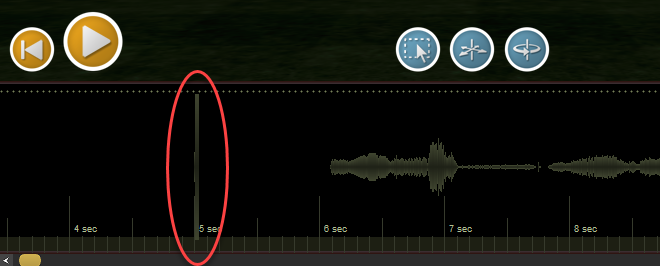
The screenshot below shows an example of an audio artifact appearing in the timeline waveform.
-
AuthorPosts
Please login to reply to this topic.